Instagram automation flow builder: triggers and steps
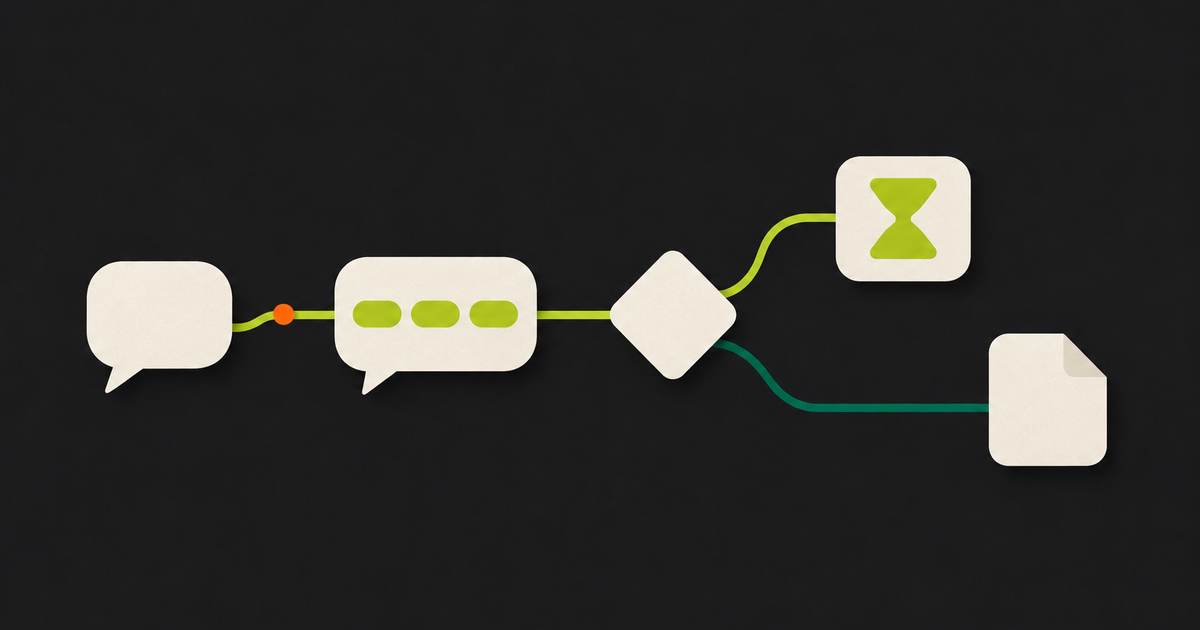
Zynta's flow builder is a canvas where you connect blocks: a trigger at the start and, after it, the steps the person receives. It covers the classic "comment a word, get the link" case, and it goes further: questions with buttons, conditions, delays, A/B tests and file delivery. Below I go through each piece and the Instagram rules that limit what is possible.
When the conversation needs more than one message
The best-known Instagram automation is comment-to-DM. I wrote a full guide on it in Instagram comment to DM automation. The trouble starts when the conversation needs more than one message. Someone asked for the ebook, but you want to check whether they follow the account first, or send a reminder the next day.
A simple rule cannot do that. That is why every new Zynta automation is a flow, even when it has a single step. You see and edit every stage.
The triggers
A flow starts with one of these triggers:
- Comment on post
- Direct message
- Story reply
- Story mention
On a comment trigger you choose which posts it covers:
- Posts I pick
- The next post I publish (it stays armed and locks onto the first post published after you create it)
- Posts published from a date on
- Every post, future ones too
Think twice before using "every post". A generic keyword fires on any post that gets that comment.
Keywords ignore case and accents. There are three modes: Contains (the whole word or phrase, so "RDO" does not fire on "concordo"), Piece (even inside another word) and Exact (the whole comment equals the keyword). An empty list means any text. Re-triggering can be on every interaction or at most once per person every 24 hours.
The steps
After the trigger, you add steps from the Add step panel:
- Send message: text, an optional link, an optional file and up to 3 quick-reply buttons, 20 characters each at most. With buttons, the flow waits up to 24 hours for a tap; with no tap, it follows the "no reply" path.
- Reply to comment: the public reply, with rotating variations so it does not repeat the same sentence.
- Actions: add or remove a tag, set a field, call an external URL (the route to Zapier or Make), send the contact to HubSpot or add it to a HubSpot list.
- Condition: the contact has a tag, has an email, clicked the link sent, follows the account, or a field equals a value. Green output for yes, red for no.
- Randomizer: an A/B test, each contact goes down a path by weight.
- Smart delay: from 1 minute to 30 days.
- Start another flow.
In messages you can use placeholders such as {name} and {username}, plus first name and full name versions. If the person has no name on the profile, the placeholder disappears together with its punctuation, so you do not end up with an odd "Hi, !".
Emails and phone numbers the person types in the DM are captured automatically. There is no dedicated "ask for email" step: you ask in the message and Zynta stores what comes back.
Delivering a file in the DM
In Send message, the Attach a PDF, image or video button puts the file inside the DM. The limits are PDF up to 25 MB, PNG or JPEG up to 8 MB and MP4 or MOV up to 25 MB. Google Drive and Dropbox share links are turned into direct downloads.
One Instagram rule catches a lot of people: the first message to someone who commented is the private reply Meta allows, and it can only be text. If you put the file on that first message, Zynta sends it as a tracked link. For the file to arrive as an attachment, put it on a message after a button. The editor warns you when this happens.
The 24-hour window
After the first reply, every message needs the person to have written to you in the last 24 hours. A comment or a link click does not open that window; a reply in the DM or a button tap does. If the window is closed, the flow stops there. That is why flows with long delays work better after a question with buttons.
How to build a flow, step by step
- Open Automations in the menu and go to Flows.
- Click New flow.
- Choose the trigger and, for comments, the posts.
- Add steps with Add step and connect the outputs.
- Click Save. The flow stays as a draft.
- Click Go live to turn it on. To stop it, Pause.
If you want something ready, the Start here section has three quick automations: Send links by DM from comments, Generate leads from stories and Answer every DM. There is also the New automation wizard, in four stages (keyword, reply, DM, review).
The limits
- Instagram only. WhatsApp is not included.
- Volume: up to 750 DMs per hour per account (Meta's private reply limit) and 18,000 per day. Anything above the limit waits for the next hour.
- Per person: at most 10 flow runs per day.
- Per flow: up to 60 steps and 120 connections. A run stops after 30 steps.
- One automation per event: if two automations could answer the same comment, the most specific trigger wins. Zynta refuses to save a trigger that clashes with another.
- No AI steps yet in the editor.
- Clicks per step do not show on the canvas. The editor shows sent and errors.
- The Instagram account has to be reconnected with the comments and messages permissions.
Automations are today part of every plan and of the trial.
Frequently asked questions about Instagram automations in Zynta
What is an automation flow in Zynta?
It is a visual sequence of steps that starts with an Instagram trigger, such as a comment or a direct message. After it come messages, buttons, conditions, delays and actions. Every new Zynta automation is a flow, even when it has a single step, so you can see and edit each stage.
Which Instagram triggers does Zynta support?
Comment on post, direct message, story reply and story mention. On a comment trigger you choose whether it covers posts you pick, the next post you publish, posts from a certain date on, or every post, including future ones. Picking the scope avoids firing on old posts.
Can I send a PDF in the DM automatically?
Yes. The Send message step takes a PDF up to 25 MB, a PNG or JPEG image up to 8 MB and an MP4 or MOV video up to 25 MB. On a comment trigger, put the file on a message after a button, because the first reply can only be text.
Can I require people to follow the account before they get the material?
Yes, with a Condition step and the "Follows the account" check. Zynta asks Instagram at that moment whether the person follows the account and sends the flow down the yes or the no path. If the check fails, the flow takes the "does not follow" path.
Why did my flow stop after the first message?
Most likely because of Instagram's 24-hour window. After the first reply, Zynta only sends messages if the person wrote to you or tapped a button in the last 24 hours. A comment or a link click does not open that window, so plan a button before long delays.
Simple rule or flow: which one should I use?
For one keyword and one answer, the New automation wizard does it in four stages. To ask something, offer options, check whether the person follows the account, wait some time or send the contact to HubSpot, use the flow builder. Both live in the same Automations area.
Which Zynta plans include automations?
Today, every paid plan and the 7-day trial. An account with no plan and no trial sees the automations screen locked. If the paying account's plan ends, live automations stay saved and paused. On the trial, the flow builder works in full.
Put this into practice
Want to build your first flow? Start the 7-day trial and connect Instagram.
Start the 7-day trial